

I’ve now run 1Password across three very different setups: my own personal vault for years, a small business account I manage for a handful of employees, and an enterprise deployment I helped roll out that needed real IT-level controls.
That’s given me a fairly complete picture of what this password manager actually does well and where it genuinely struggles, across the full range of how people actually use it. Here’s my honest, detailed take.
How I Started Using It Personally
I moved to 1Password years ago after getting tired of reusing passwords across accounts, the kind of habit that eventually catches up with you. Setup was simple: download the app, create an account, and you get a Secret Key alongside your master password.
This Secret Key is the thing I actually appreciate most about 1Password’s core design, even if someone somehow got my master password, they’d still need this locally-generated key to unlock my vault. It’s a genuine extra layer most competitors skip.
Day to day, the browser extension handles almost everything. I click into a login field, 1Password suggests the saved credential, I confirm, and I’m in. When I create a new account somewhere, it offers to generate a strong password automatically and save it without me typing anything memorable.
After years of this, I genuinely don’t know most of my own passwords anymore, which is exactly the point.
How to Set Up 1Password (Step-by-Step)
For anyone considering this, here’s what the real onboarding process looks like across the tiers I’ve used:
Step 1: Create your account at 1Password.com, choosing Individual, Families, Teams, or Business depending on your situation.
Step 2: Save your Secret Key and Emergency Kit immediately, ideally printed or stored somewhere physically secure, not just in a screenshot. Lose both your master password and Secret Key, and there’s no recovery.
Step 3: Install the browser extension and mobile app, since the real value of a password manager only shows up once it’s integrated into your daily browsing, not just sitting as a standalone app.
Step 4: Import existing passwords from your browser’s built-in password manager or another password tool, 1Password supports imports from most major competitors including Bitwarden.
Step 5: Run a Watchtower scan immediately after import to see how many weak or reused passwords you’re actually carrying, this was genuinely eye-opening for me the first time.
Step 6: For Families, invite your household members and set up at least one shared vault for common items like Wi-Fi passwords or streaming logins.
Step 7: For Business, configure SSO integration with your identity provider before rolling out to the full team, this is worth getting right before wider adoption rather than fixing it after employees are already relying on it daily.
Step 8: For Enterprise, evaluate Unified Access and Privileged Access early in your planning conversation, since retrofitting these governance layers onto an already-sprawling credential environment is considerably harder than building it in from the start.
Watchtower: The Feature I Check More Than I Expected To
Watchtower is 1Password’s built-in security dashboard, and it flags weak passwords, reused passwords, and logins that show up in known data breaches. I’ve had it catch a couple of old accounts I’d completely forgotten existed, sites I signed up for years ago with a password I was still using elsewhere.
Getting that nudge to go change it before it became a real problem is the kind of quiet, unglamorous work a password manager should be doing in the background.
Travel Mode: A Feature I Didn’t Think I’d Use, Then Did
I was skeptical of Travel Mode until I actually needed it. It temporarily removes sensitive vaults from your devices, so if you’re crossing a border and get asked to unlock your phone, there’s simply nothing sensitive there to find.
I used this once for a work trip where a colleague had a genuinely uncomfortable device search experience at a border crossing, and having that option available afterward made me actually turn it on for future trips rather than treating it as a gimmick.
Recent Personal-Side Updates Worth Knowing About
1Password has shipped a steady stream of updates through 2026 that I’ve noticed directly in daily use:
A new phishing prevention tool, introduced in January, flags unlinked websites, meaning if a phishing site tries to trick you into entering credentials on a lookalike domain, 1Password’s refusal to autofill on a mismatched site is now paired with a clearer warning about what’s actually happening. I’ve had this catch a suspicious login page before I even consciously noticed something was off about the URL.
Native macOS Autofill, rolled out in May, made a real difference in daily speed. Autofill on Mac now feels closer to how it behaves in the browser extension, filling logins directly in native apps rather than requiring a workaround.
Device-based unlock and new security presets for Mac and Windows, from late 2025, let me unlock 1Password using my device’s own biometric authentication in more contexts, which cut down on how often I’m typing my master password throughout the day.
Exact phrase search with quotes is a small but genuinely useful addition, when your vault has hundreds of items, being able to search for an exact match instead of a fuzzy one saves real time.
Where I Manage a Small Business Account
I also run a 1Password Business account for a small team, which is a genuinely different experience from the personal side. As an admin, I can see which team members have weak or reused passwords across shared vaults (without seeing the passwords themselves), assign role-based access to specific vaults, and integrate with our existing identity provider for single sign-on.
The Account Governance feature, expanded in June, has become one of the most useful business-side tools I’ve used.
It combines Enterprise Password Manager with SaaS Manager, letting me discover SaaS apps and shared credentials that employees have stored in their own personal vaults, apps that never went through IT approval, essentially “shadow IT” credential sprawl, and assess how risky each one actually is based on data sensitivity and how many people have access.
I’ve used this to find and move genuinely risky shared logins into properly managed team vaults instead of leaving them sitting in someone’s personal account.
1Password Developer Tools now live directly in the desktop app sidebar for every user on the business plan, not tucked away in a separate section.
For any team member handling API keys or environment secrets, even occasionally, this makes it much less likely someone pastes a secret into Slack out of pure convenience because the proper tool felt like too much friction.
I’ll be honest about a rough edge here: rolling out SSO integration took more back-and-forth with our IT setup than I expected, mostly around getting policy enforcement to behave the way we wanted across every device type our team uses. It works well once configured, but “well once configured” is doing some work in that sentence.
Stepping Into Enterprise: What Changes at Scale
I’ve also been involved in evaluating and helping configure a larger enterprise deployment, and the difference from the small business tier is real, not just a pricing tier bump.
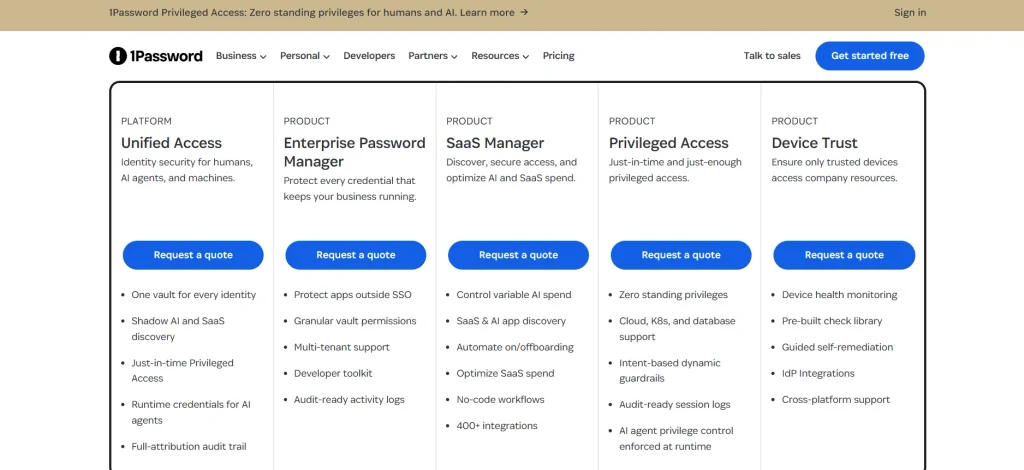
1Password Unified Access, which went into public preview in January, is built specifically for the credential sprawl problem at scale, discovering and governing company-owned credentials that fall outside traditional identity systems, shared accounts, service accounts, anything not neatly tied to a single SSO login.
For a larger organization, this is the tool that actually answers “wait, who has access to what, and why,” a question that gets genuinely hard to answer manually once you’re past a few hundred employees.
1Password Privileged Access, introduced in July, is the newest and, in my opinion, most forward-looking addition. It’s built around the idea of zero standing privileges, meaning nobody, human or AI agent, holds permanent elevated access to sensitive systems.
Instead, access gets granted just-in-time, for a specific task, then revoked. Given how many organizations are now plugging AI agents into internal systems with far more standing access than a human employee would ever be granted by default, this feels like exactly the right problem to be solving right now rather than reactively.
MSP Edition is worth mentioning if you’re on the managed service provider side rather than a single company. It adds policy templates so you can define a security policy once and apply it consistently across every client environment you manage, plus seat limits per managed company so you don’t end up with surprise overage billing.
I haven’t personally run an MSP deployment, but having spoken with people who have, this addition solves a real, specific operational headache around managing several separate client accounts at once.
The AI Integration Angle: Genuinely New Territory
This is the part of 1Password’s roadmap that moved the fastest in 2026, and it’s worth understanding since it touches both personal and business use differently.
1Password now runs an MCP Server (Model Context Protocol), which lets AI assistants like Claude interact with your 1Password vault in a controlled way. Concretely, this means an AI assistant can now sign in to websites on your behalf, with 1Password filling your login or one-time code after you explicitly approve it, without the assistant ever actually seeing or storing your raw credentials.
I’ve tested this directly, and the approval step genuinely feels like the right level of friction, enough that you’re consciously saying yes to a specific action, not so much that it defeats the purpose of automation.
For developers, there’s also a local MCP server accessible from the Developer tab, giving AI coding assistants controlled access to 1Password Developer tools and environment secrets during actual coding work, rather than a developer pasting an API key directly into a chat window, which is a real, common bad habit this quietly discourages.
On the business and enterprise side, this ties directly back into Privileged Access: the same “zero standing privileges” philosophy now explicitly covers AI agent identities, not just human ones. That’s a genuinely current problem, and I haven’t seen many competitors address it directly yet.
Pricing, From Someone Who’s Paid for All Three Tiers
I’ve personally paid for Individuals, watched our small team pay for Business, and been part of Enterprise pricing conversations, so here’s the real picture, not just the marketing page numbers.
Individuals currently run around $3.99/month on annual billing (previously $2.99, following a documented price increase of up to 33% that took effect in March 2026).
Families, which I’d recommend over Individual the moment more than one person in your life needs a vault, runs around $5.99/month for up to five people, genuinely better value per person than multiple Individual subscriptions.
For our small business, Team Starter Pack was the right entry point at a flat rate for up to 10 people before we eventually needed to move to Business at roughly $7.99 per user per month for proper SSO integration.
Enterprise pricing isn’t published; it’s a custom quote conversation, and reasonably so, since deployments vary so much in scale and specific security requirements.
One honest note: every tier comes with a 14-day free trial, no credit card required, but there’s no standing refund guarantee beyond that trial window. I’d treat that trial period seriously rather than assuming you can walk it back after paying.
Where I Think 1Password Still Falls Short
I want to be fair here. A few genuine frustrations across my time using all three tiers:
The pricing has climbed noticeably. The March 2026 increase was real and meaningful, up to 33% on personal plans, and while 1Password’s reasoning (continued feature investment) is fair, it does put more pressure on comparing against cheaper competitors if budget is your main concern.
There’s no standing refund guarantee beyond the 14-day trial, which feels slightly stingy for a product asking for an annual commitment.
SSO and policy configuration on the business side took more iteration than I expected to get working smoothly across every device type our team used, this isn’t a five-minute setup once you’re past the personal tier.
The AI integration features, while genuinely promising, are new enough that documentation and best practices are still catching up. I found myself testing by trial and error more than I’d like for the MCP Server setup.
Who I’d Actually Recommend Each Tier To
Individuals work well if you’re the only person who needs a vault and you just want solid, unglamorous password hygiene without complexity. Families are close to a no-brainer the moment a second person enters the picture, roommate, partner, kid, even a separated family member, since it beats buying multiple Individual plans on both price and shared-vault convenience.
Small businesses under 10 people should start with Teams Starter Pack rather than jumping straight to Business, and only move up once SSO integration or Account Governance genuinely becomes necessary.
Larger organizations, especially any dealing with AI agents accessing internal systems, should take a serious look at Enterprise specifically for Unified Access and Privileged Access, this is the part of 1Password’s roadmap addressing a problem most competitors haven’t caught up to yet.
Pros and Cons: My Honest 1Password Review
Pros
- Secret Key adds a genuine extra layer of encryption beyond just a master password
- Watchtower reliably catches weak, reused, and breached passwords before they become a real problem
- Travel Mode is a practical, real-world useful feature, not a gimmick
- Native macOS Autofill and device-based unlock have made daily use noticeably faster
- New phishing prevention tool flags unlinked/mismatched sites more clearly
- Account Governance genuinely surfaces shadow IT credentials that would otherwise stay hidden
- Unified Access and Privileged Access are ahead of most competitors on AI-agent access control
- MCP Server integration with Claude and other AI assistants is thoughtfully gated behind explicit approval
- Developer Tools built directly into the desktop sidebar reduce risky habits like pasting secrets into chat
- Families plan is clearly better value per person than multiple Individual subscriptions
- 14-day free trial available on every tier, no credit card required
- MSP Edition policy templates solve a real operational headache for managing multiple client accounts
Cons
- March 2026 price increase (up to 33%) makes it a harder sell purely on cost
- No standing refund guarantee beyond the 14-day trial
- SSO and policy configuration took more iteration than expected to get right across all device types
- AI integration features are new enough that documentation and best practices are still catching up
- Enterprise pricing isn’t published; requires a custom sales conversation
- Retrofitting governance tools (Unified Access, Privileged Access) onto an already-sprawling environment is harder than building it in from the start
- Losing both your master password and Secret Key means permanent, unrecoverable lockout
FAQs: My Honest 1Password Review
Is 1Password worth the price increase from March 2026?
In my experience, yes, if you’re actually using the security features (Watchtower, Travel Mode, breach monitoring) rather than just storing passwords. If you only need basic password storage, it’s worth comparing against cheaper competitors first.
What’s the real difference between Individuals and Families?
Individual covers one person. Families cover up to five people under one subscription, with shared vaults and account recovery tools, and costs less per person than buying multiple Individual plans.
Do I need Business or would Teams Starter Pack work for my small company?
If you have 10 or fewer people and don’t need SSO integration yet, Team Starter Pack’s flat rate is the more cost-effective starting point. Move to Business once SSO or deeper Account Governance becomes necessary.
What happens if I lose my Secret Key?
If you lose both your master password and your Secret Key, there’s no way to recover your vault. Save both somewhere physically secure, not just as a screenshot, the day you set up your account.
Can AI assistants like Claude actually access my passwords through 1Password?
Not directly. The MCP Server integration lets an AI assistant request that 1Password fill a login or one-time code after you explicitly approve the action, the AI never sees or stores your raw credentials.
My Final Take: My Honest 1Password Review
After using 1Password personally for years, running it for a small team, and getting close to an enterprise rollout, I keep coming back to the same conclusion: the core password management experience is genuinely solid and has been for a long time, autofill works reliably, Watchtower catches real problems, and the Secret Key design is a smart extra layer most people never think about until it matters.
What’s changed most in 2026 is the business and enterprise side actively evolving to handle credential sprawl and AI agent access, problems that didn’t exist in this form a couple of years ago and that most competitors are still catching up on.
It’s not the cheapest option anymore after this year’s price increase, and the refund policy is thinner than I’d like, but if you want a password manager that’s actually keeping pace with how both humans and AI tools access systems today, I haven’t found anything that covers as much ground as 1Password currently does.